
Configuring the masking operations
Configure one masking operation for each part of the input phone numbers.
Separators will be left unchanged in the masked values.
Separators will be left unchanged in the masked values.
In this Job, the fictitious Australian phone numbers use the
XX XXXX

					XXXX
format:
- A two-digit prefix
- A space used as a separator
- A four-digit code region
- A space used as a separator
- A four-digit line number
-
Double-click tPatternMasking to display its
Basic settings view in the
Component tab.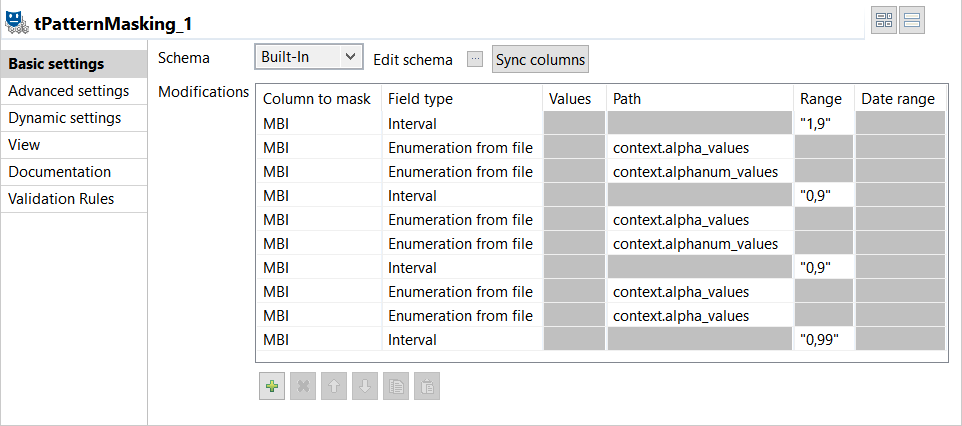
-
If required, click Sync columns to retrieve the schema
defined in the input component. -
Click the Edit schema button to open the schema dialog
box.tPatternMasking adds a read-only column to the output
schema.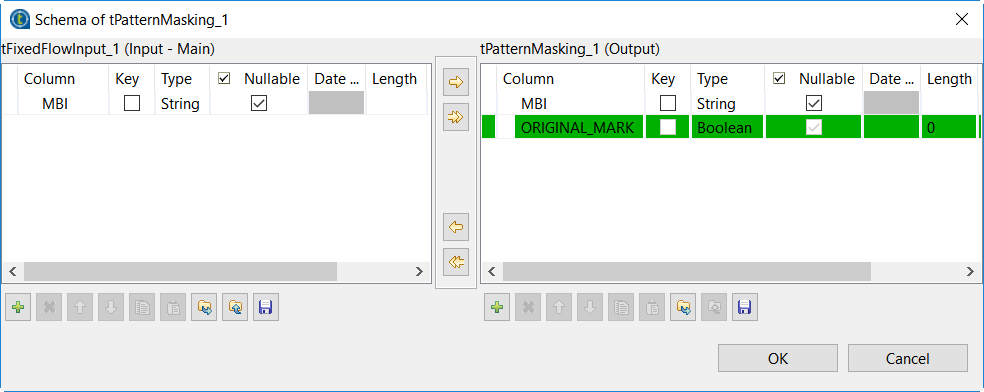
The ORIGINAL_MARK column labels output records:
- Original records are labeled with the
truelabel. - Substitute records are labeled with the
false
label.
- Original records are labeled with the
-
In the Modifications table, click the
[+] button to add three rows.Each row corresponds to a masking operation for a part of the input phone
numbers. -
In the Modifications table, configure the first
row:-
From the Column to mask field, select the column
which holds the data to be masked.In this example, select PhoneNumber. -
From the Field type field, select
Enumeration as the field type the data
belongs to and enter "02,03,07,08" in the
Values field.Two-digit prefixes will be masked with one of those values.
-
From the Column to mask field, select the column
-
In the Modifications table, configure the second
row:-
From the Column to mask field, select the column
which holds the data to be masked.In this example, select PhoneNumber. -
From the Field type field, select
Enumeration as the field type the data
belongs to and enter "5550,7010" in the
Values field.Four-digit code regions will be masked with one of those values.
-
From the Column to mask field, select the column
-
In the Modifications table, configure the third
row:-
From the Column to mask field, select the column
which holds the data to be masked.In this example, select PhoneNumber. -
From the Field type field, select
Interval as the field type the data belongs
to and enter "0000,99999" in the
Range field.Four-digit line numbers will be masked with a value within the defined
range.
-
From the Column to mask field, select the column
-
Click the Advanced settings tab and select the
Output the original row? check box.The Job will output original and substitute records. -
From the Method list, select FF1 with
AES to generate encrypted masked values. -
In the Password for FF1 methods, enter a password to
generate unique masked values.This password is also necessary to unmask data.
Parent topic: Masking Australian phone numbers
Document get from Talend https://help.talend.com
Thank you for watching.


 Users Today : 2
 Users Yesterday : 5
 This Month : 170
 This Year : 4560
 Total Users : 21814
 Views Today : 504
 Total views : 73026
 Who's Online : 1